Giving an AI agent “admin” access to your WordPress site is the fastest way to automate work—and the fastest way to create a security incident. A safer approach is to treat your WordPress MCP connection like production infrastructure: design the permissions, credentials, and review steps before you let an agent take actions.
This guide explains a practical, WordPress-native security model for MCP-based automations (including setups that use a bridge/plugin such as WEBOMCP). You’ll get a checklist you can apply today, without relying on vague “be careful” advice.
What “WordPress MCP security” actually means
MCP (Model Context Protocol) is a way for an AI agent to call tools. In a WordPress context, those tools often map to REST API actions: creating posts, updating pages, managing media, clearing cache, reading settings, or interacting with plugin endpoints.
If you’re new to the concept, start with this overview of what a WordPress MCP plugin is and why it changes operational workflows.
WordPress MCP security is the set of controls that ensures those tool calls:
- only do what you explicitly allow (least privilege)
- can be traced back to a user and a request (auditability)
- fail safely when the agent is wrong (guardrails and review)
- don’t leak credentials or private content (secrets hygiene)
Threat model: what can go wrong (in real WordPress terms)
Before you lock anything down, name the failures you’re preventing. Common MCP automation risks in WordPress include:
- Over-permissioned credentials: one token can edit theme files, users, plugins, or payment settings.
- Wrong-target edits: updating the wrong page, overwriting blocks, or publishing a draft prematurely.
- Prompt injection: an agent follows instructions embedded in content it reads (comments, support tickets, scraped pages).
- Secrets exposure: app passwords or API keys end up in logs, tickets, or AI chat history.
- Non-idempotent actions: retries create duplicates (posts, media uploads, redirects).
Best practices checklist for secure WordPress MCP automations
1) Use a dedicated WordPress user for the agent
Create a separate user account specifically for MCP/automation access. Don’t reuse a human admin account. This makes access easier to revoke, easier to audit, and less likely to “inherit” broad privileges over time.
Assign the smallest role that can do the job. For SEO publishing workflows, that’s often Editor (or a custom role), not Administrator.
2) Prefer Application Passwords over sharing your real password
WordPress Application Passwords are designed for API access. They can be revoked without changing the user’s login password and without logging the user out everywhere.
- Use one application password per automation (or per environment).
- Name them clearly (for example: “SEO publisher bot”).
- Rotate them on a schedule and immediately after team changes.
3) Restrict the tool surface area (what the agent can call)
“Least privilege” isn’t only about user roles—it’s also about which tools are exposed to the agent. If your MCP bridge can expose hundreds of actions, start with a minimal set, then expand deliberately.
In practice, this is where a curated addon/tool layer helps. For example, WEBOMCP’s ecosystem is built around core workflows plus targeted addons—so you can start with a narrow set of actions instead of enabling everything at once.
For SEO content publishing, you typically need only:
- search posts/pages by slug
- create/update a post
- set post status to
draftorpublishbased on rules - upload/select a featured image (optional)
Avoid exposing high-risk actions (user management, plugin/theme edits, database operations) unless you have a strong reason and an approval workflow.
4) Add a human approval step for irreversible actions
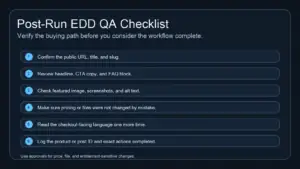
Publishing is irreversible in practice (it triggers indexing, email alerts, and user trust). For production sites, consider a two-step flow:
- Agent creates/updates content as
draft. - A human reviews, then changes status to
publish.
If you must auto-publish, narrow the scope: only publish updates to pre-approved slugs or only publish within a staging site that later syncs to production.
5) Defend against prompt injection (content is untrusted input)
Any text your agent reads should be treated like untrusted input. Comments, support tickets, and even existing post content can include instructions that try to override your agent’s policy.
- Never let the agent execute instructions found inside site content.
- When summarizing or extracting, enforce a strict schema (fields you accept, fields you ignore).
- Keep system/tool policies separate from content.
6) Make actions idempotent (avoid duplicates)
Network retries happen. Build your workflow so repeating a request doesn’t create duplicates. In WordPress publishing flows, the simplest method is to use the slug as the unique key:
- Search by intended slug first.
- If it exists, update that post ID.
- If it does not exist, create a new post and set the slug immediately.
7) Log what matters (without logging secrets)
You want an audit trail that answers: who/what made the change, when, and what exactly changed. At the same time, logs are a common place where secrets leak.
- Log post/page IDs, slugs, and action types (create/update/publish).
- Do not log application passwords, auth headers, or raw tokens.
- Store “before/after” diffs only when required—and redact sensitive content.
Where WEBOMCP fits in a secure setup
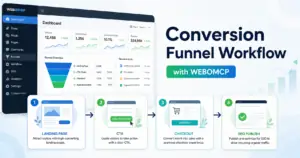
WEBOMCP is commonly used as a bridge between an AI agent and WordPress actions. The security win is not “more automation”—it’s controllable automation: clear boundaries around what the agent can read and change.
If you’re evaluating WEBOMCP for production use, start by defining your minimum tool set (publishing only, media only, SEO only), then confirm you can restrict access to exactly that set with a dedicated WordPress user and application password.
For a broader view of the “core plugin + addons” approach, see WEBO MCP core + addon architecture and how teams typically expand capabilities over time.
Quick runbook: a safe default configuration
- Create a dedicated “Automation” user.
- Assign Editor or a custom minimal role.
- Create one application password for the automation.
- Expose only the tools you need (start minimal).
- Make publishing a two-step draft → human review → publish (when possible).
- Use slug-first logic to prevent duplicates.
- Keep logs, redact secrets, and rehearse your revoke/rotate process.
Next step
If you want to operationalize these controls (not just document them), start by implementing a “draft-first” publishing workflow and a least-privilege automation user. If you’re using WEBOMCP, begin with a small tool set (post search + update) and expand only after you’ve validated your review and rollback process.
CTA: If you’re building a secure AI-to-WordPress workflow, review WEBOMCP pricing and start with a minimal, audited publishing automation first—then iterate.
FAQ
Is an Application Password safer than a normal password?
It’s safer for automation because you can revoke it independently, scope its usage to API access, and rotate it without disrupting a human’s login workflow.
Do I need Administrator for automation?
Usually no. For content operations, Editor is often enough. Only grant Admin when the workflow truly requires plugin/theme/settings changes—and ideally gate those changes behind manual approval.
How do I prevent duplicate posts when the agent retries?
Use “slug-first” logic: search by slug, update if found, create only if not found. This is the simplest idempotency guard for publishing automations.