You saved a WordPress page, but visitors still see the old headline or layout. When WP Rocket cache is not updating as expected, the stale copy may sit in the page cache, generated CSS, your hosting platform, a CDN, or one browser.
This guide helps site owners and agencies isolate the problem, apply the smallest useful fix, and confirm the result on the public URL. Start with one affected page and one specific change you can recognize.
Before you clear anything
Open the page in WordPress and confirm that the change was saved to the published item. Copy its public permalink, rather than an editor preview. Note the previous text or styling and what should replace it.
- Keep access to WordPress and the relevant hosting or CDN dashboard available.
- Record which cache and optimization services are enabled.
- Save the current settings before changing optimization options. Use staging for tests that could affect layouts or interactions across the site.
If caching is part of an automated publishing process, the broader WP Rocket workflow with WordPress MCP explains how to keep those checks tied to the page being changed.
1. WP Rocket cache not updating: identify the symptom
Compare the public page in your usual browser and a fresh private window where you are logged out. These comparisons provide clues, not proof: a private window still receives cached responses from a host or CDN.

- Old headline or paragraph everywhere: confirm the published content, then investigate cached HTML.
- New words but old colors or spacing: inspect the stylesheet or generated CSS responsible for that element.
- Only your usual browser is stale: compare browser caching and extensions before changing site-wide settings.
- The article is current but the blog listing is old: investigate the listing URL separately.
Write down the affected URL, device, login state, and exact symptom. This makes the next test reproducible and gives a developer useful evidence if the first fix fails.
2. Clear WP Rocket cache for the affected page
WP Rocket normally clears the relevant cache when posts or pages change. Its automatic cache-clearing documentation describes the triggers and related pages included in that process.
While logged in and viewing the affected page, open the WP Rocket menu in the WordPress admin toolbar and use the page-specific cache-clearing action available in your version. Then open the same public permalink in a logged-out window and look for your saved change.
If a shared header, navigation menu, or template changed across many pages, a broader purge may be appropriate. Use the WP Rocket dashboard or toolbar cache-clearing control, then check representative affected pages. Avoid repeatedly purging the whole site while trying to diagnose one URL.
Cache removal and rebuilding are separate events. Let the configured preload process or a subsequent visit rebuild the page, then check again. A successful purge message alone does not establish that visitors receive the updated content.
3. Check Used CSS when the text is current but styling is stale
If Remove Unused CSS is enabled, stylesheet changes may require clearing Used CSS as well. WP Rocket provides a URL-specific control and a whole-site control; choose the scope that matches the CSS change.
Its Remove Unused CSS documentation explains that generation is asynchronous. A visit or preload can initiate processing, and a later visit applies the result. Do not assume the first reload after clearing represents the finished output.
For example, after changing a landing page button color in custom CSS, verify that the expected rule exists in the original stylesheet. Then clear the affected Used CSS, allow processing, and compare the public page at desktop and mobile widths.
If generation remains incomplete, review WP Rocket notices and its service requirements, including public accessibility and working scheduled tasks. If the original stylesheet itself is wrong, return to the theme or page builder that produces it; repeatedly clearing WP Rocket will not correct the source rule.
4. Inspect hosting, CDN, and browser caches
Clearing one cache does not necessarily clear every cache serving the page. Check the hosting panel and any CDN dashboard for their documented purge controls and integration status. Purge the affected URL where supported, then retest.
WP Rocket’s guide to delayed content changes covers additional cache layers and browser caching. If refreshing only the browser fixes the issue, inspect the HTML document’s response headers in the browser Network panel and ask your host about unexpected long-lived HTML caching rules.
Keep a short test log: layer checked, action taken, URL requested, and whether the specific change appeared. Test after each action so you know which layer mattered. Do not disable every caching service at once, because that hides the cause.
5. Fix a stale blog listing separately
If a post is updated but its listing still shows an old title or excerpt, check WordPress Settings → Reading. For a site with a static homepage and separate blog, confirm the correct posts page is selected.
For a listing that needs additional invalidation, review WP Rocket’s Advanced Rules → Always Purge URL(s). Add only relevant listing URLs, save, and verify the behavior on the next content update. A custom query, external feed, or manually written excerpt may require its own correction instead of a cache rule.
6. Verify the public result before closing the task
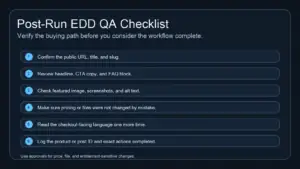
After the relevant cache has rebuilt, request the normal public permalink again. Use this final check to confirm both the content change and the interactions that matter to the page.

- Confirm the exact updated headline, image, or style is visible while logged out.
- Review desktop and mobile layouts.
- Test navigation, buttons, and any affected form without submitting unintended live transactions.
- Check the homepage or listing if it displays the changed content.
- Reload once more to ensure the corrected result persists after rebuilding.
An example completion note is: “The landing-page headline now matches the saved version on the public URL in a logged-out browser. Mobile layout and the enquiry button were checked. The hosting page cache was the stale layer.” Use only observations you actually verified.
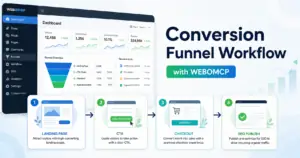
Make cache troubleshooting repeatable with WEBOMCP
For an AI-assisted workflow, start by discovering the actions exposed by your connected site. Ask the assistant to identify the page, inspect its saved content, list the available cache actions, and propose a specific purge scope. An installed plugin does not guarantee that every plugin action is exposed through MCP.
Use the principles in human-in-the-loop WordPress MCP approvals for changes that affect the whole site. Keep host and CDN operations separate when the connection does not expose them.
A useful instruction is: “Inspect this page and report the published content and available cache actions. Propose a targeted fix. After the approved action, verify the public URL and report any cache layer you could not inspect.” This keeps the report grounded in observed results.
Conclusion
Resolve stale content by confirming the saved page, identifying the layer serving the old version, clearing the appropriate cache, and verifying the public result. A small, documented sequence is easier to repeat than a collection of unexplained setting changes.
To bring this check into your publishing process, review the WEBOMCP addons and start with one page-level inspection and verification workflow.