A product page can have an attractive layout and still leave buyers unsure about size, compatibility, or what arrives in the box. This WooCommerce product SEO checklist helps store teams improve those details, check search metadata, and verify the page before applying the same process to more products.
Start with one existing product. Keep its commercial facts accurate, write for the shopper’s decision, and use AI only where you can review the proposed changes. The workflow below works manually in WordPress; MCP can assist with supported reading and editing tasks when the necessary tools and permissions are available.
Prepare your WooCommerce product SEO checklist
In WordPress, open Products and select a product that needs clearer information. Record its ID and current URL, then save a copy of the description and SEO fields you intend to change. Gather verified specifications, approved product photos, delivery information, and the store’s returns policy.
- Define the buyer’s task: identify a model, check compatibility, compare an option, or decide whether to purchase.
- Choose one main search phrase that accurately describes the item.
- Note factual gaps that require an answer from the store owner or supplier.
- List the fields you will edit and who will check the result.
For example, “ceramic pour-over coffee dripper” describes a specific product type. “Coffee equipment” is broader and may fit a category page better. Choose language that matches the item rather than adding popular terms unrelated to its use.
If you are introducing AI assistance across store operations, the existing WooCommerce workflow with WordPress MCP explains the wider operational context. Keep this first review limited to one product’s content.
1. Make the product name and descriptions useful
In the product editor, check that the name identifies the item clearly. Include a model or distinguishing attribute when it helps a buyer recognize the correct product. Avoid turning the name into a list of near-identical keywords.
Use the short description for the purchase decision: what the item is, who it suits, and the most important verified limitations. Use the main description for supporting details such as materials, dimensions, care, compatibility, and included accessories. WooCommerce’s product management documentation explains the editor and product types; the exact layout customers see depends on your theme and template.
Example: replace vague claims with verified details
Consider a hypothetical dripper whose approved specification confirms a ceramic body and size 02 paper-filter compatibility. Replace “Premium coffee maker for the best coffee experience” with “Ceramic pour-over dripper compatible with size 02 paper filters.” Add whether filters are included only after confirming the packaging information.
This is an illustrative writing example, not a customer result. Do not infer dishwasher safety, origin, warranty coverage, or brewing capacity from a photo. Put unresolved facts on a review list instead of asking AI to fill them in.
2. Review the SEO title, description, and URL
Open the product’s SEO panel if your installed SEO plugin provides one. Write a title that names the product and its useful differentiator. Draft a concise meta description that explains what a shopper can assess on the page. Treat these as search presentation suggestions; they do not guarantee a particular snippet or ranking.
For a hypothetical product, a title such as “Ceramic Pour-Over Dripper for Size 02 Filters” is more informative than “Best Coffee Dripper Buy Coffee Dripper Online.” Keep changing prices or promotional deadlines out of static copy unless your team maintains them.
When using Rank Math with an AI workflow, follow the Rank Math publishing review process: inspect the current fields, propose an edit, save it through an available tool, and read the values back. A generated suggestion is not evidence that the metadata was saved.

Preserve an established product URL unless there is a clear reason to change it. If a change is necessary, plan the redirect and update affected internal links. Renaming a product does not automatically make a URL change worthwhile.
3. Check product photos and variant details
Review the featured product image and gallery in the product editor. Use photos that accurately show the item, its scale, and details a buyer needs. Check the page on mobile so useful details remain visible without unnecessarily large downloads.
- Describe informative images with accurate alt text, such as “White ceramic pour-over dripper viewed from above.”
- Show the selected color or model accurately when variant images are available.
- Confirm that attributes and selectable variations agree with the written description.
- Check that image filenames and captions do not describe a different product.
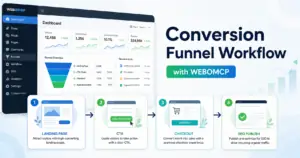
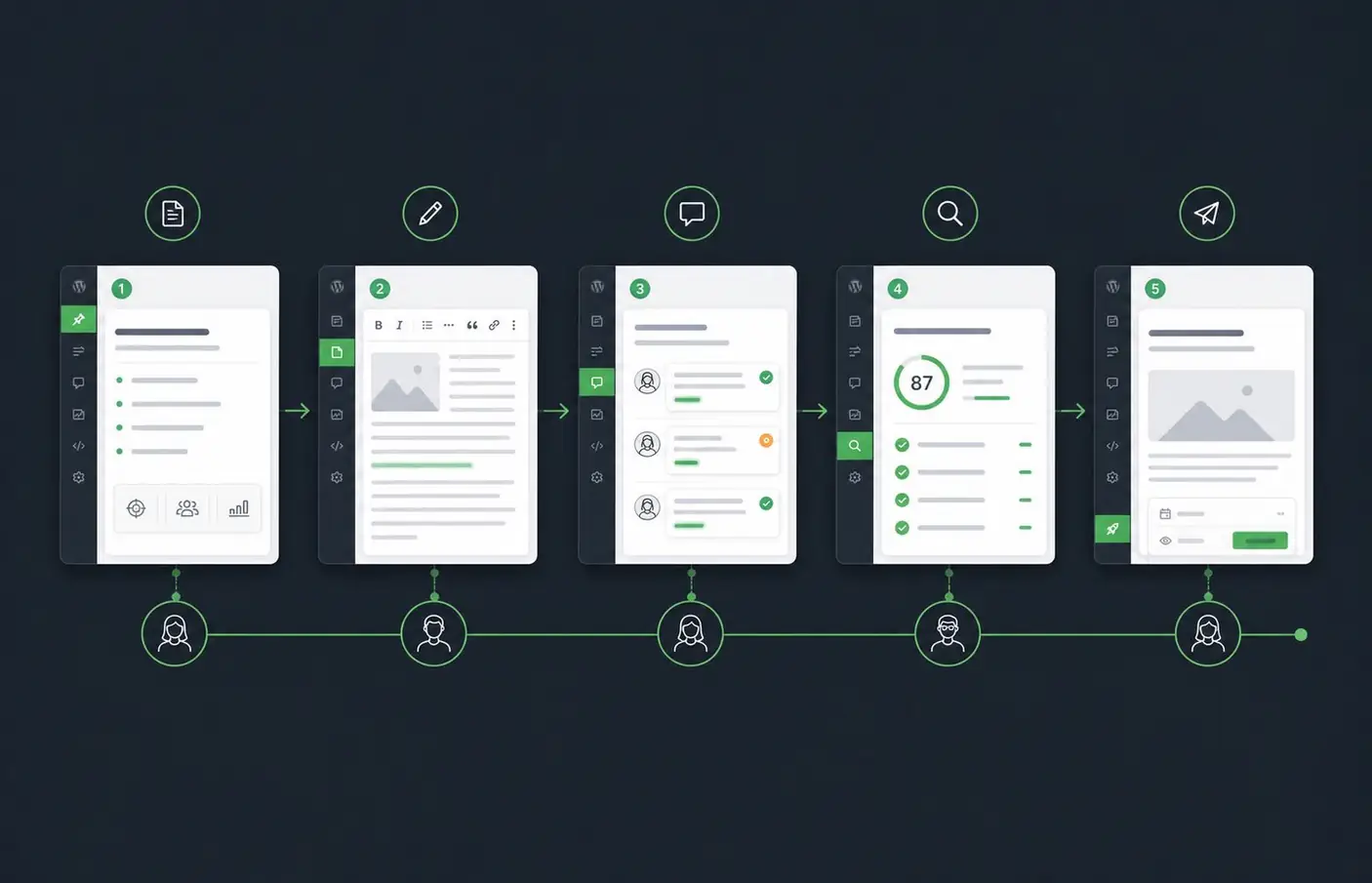
Do not generate substitute product photos that invent finishes, ports, accessories, or packaging. A helpful workflow diagram can explain a process, but a sales image should represent what the customer receives.
4. Compare structured data with the visible page
Test the public product URL with Google’s Rich Results Test and inspect any product markup it detects. Compare the reported name, price, currency, availability, and review information with the visible page and the store’s actual data. Fix the source of a mismatch rather than pasting a second conflicting block of markup into the description.
Google’s product structured data guidance describes supported product search appearances. Eligibility does not guarantee display. Use real ratings and reviews only, and investigate which active plugin or theme generates the markup before changing schema settings.
Variable products need an additional check: selecting another size or color should not leave misleading information on the page. Google documents product variant structured data separately. Review your implementation against that guidance when variants are part of the catalog.
5. Use MCP for a bounded review and edit cycle
Ask your connected assistant to inspect the selected product and report available capabilities before requesting changes. The product-reading tool, product-writing tool, and SEO metadata tool may be separate. A working WordPress connection does not establish that every WooCommerce field can be edited.
A useful request is: “Review product ID [ID] against the supplied specifications. Propose a clearer short description and SEO metadata. Show current and proposed values. Flag missing facts. Keep price, stock, SKU, variations, and URL outside this edit.” Replace the placeholder with the verified product ID before running it.
Agree on the changes before applying them, then read back the saved fields. The human review and approval workflow provides a useful pattern for deciding which store changes need owner review.
If a required tool or field is unavailable, complete that step in the WordPress dashboard and record the limitation. Do not treat a successful description update as proof that SEO metadata, images, or structured data changed too.
6. Verify the customer journey and record the result
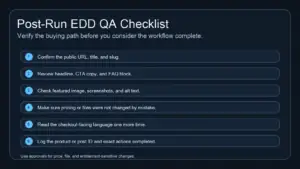
Open the public product page after saving. Read the title and descriptions, check images and links, select available variants, and confirm that the add-to-cart flow uses the intended item. A content review usually needs no live purchase; use the store’s approved testing process for checkout testing.
- Check that relevant category pages and buying guides help shoppers reach the product.
- Verify that shipping, returns, and compatibility references point to existing, accurate information.
- Confirm the intended indexability and canonical URL using your SEO tools and rendered page.
- Log the edited fields, date, reviewer, and any unresolved issue.
Use Search Console to review the product URL’s search performance over time, allowing for seasonality and other store changes. Compare relevant queries and page behavior without attributing every movement to this edit. A completed checklist confirms quality checks, not a guaranteed traffic increase.
Finish one product before expanding the workflow
The useful outcome is a product page with clearer facts, consistent metadata, accurate images, and a verified purchase path. Once one item passes review, use the same checklist on a small group with similar content needs and keep exceptions visible.
Ready to introduce this process to your store? Review the WEBOMCP addon catalog, confirm the WooCommerce and SEO capabilities available for your site, and start with one product you can inspect from edit to public result.