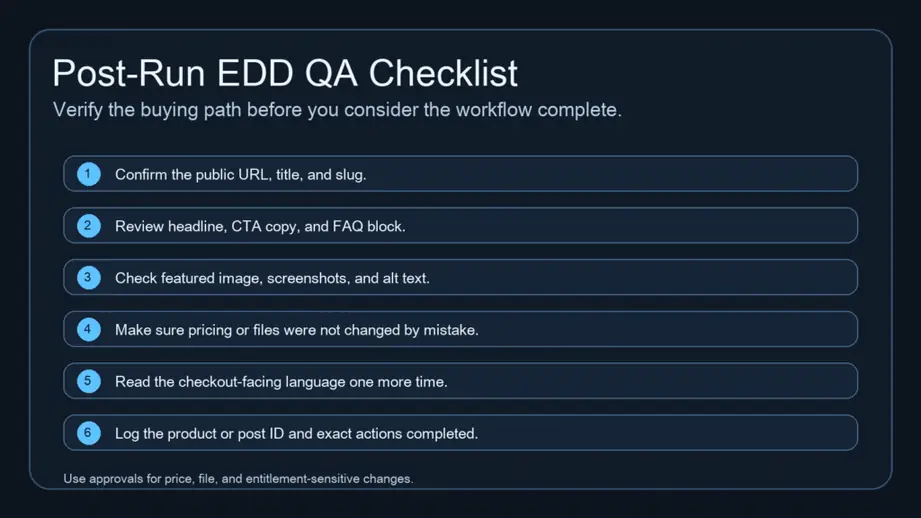
A checkout confirmation is only one part of a successful digital sale. The buyer also needs the right receipt, the correct file, and instructions that match what the product page promised. This Easy Digital Downloads test purchase checklist helps store owners and WordPress agencies verify that complete path before launching a product or approving a store update.
Use it for a single downloadable product first. Then repeat the relevant checks for other price options, bundles, or account requirements. The goal is a recorded result that another person can review, with clear evidence for any failed step.
Prepare a controlled test
Choose a staging store or a pre-launch environment where testing cannot interrupt real customers. Do not casually enable test mode on an active storefront. Record the site URL, product ID, payment gateway, expected file version, and the person responsible for returning the store to its intended configuration.
Use an email address you control. Keep a small test log with columns for the action, expected result, observed result, and evidence. Avoid putting customer details, private download links, or payment credentials into a shared report.
1. Check the product and expected download
Open the selected product under Downloads in WordPress. Compare the public description with its configured price and files. EDD supports file assignments for price variations, so verify the selected option delivers the intended package. Upload sale files through the product’s file controls; follow the official EDD product setup guide for file handling and product settings.
- Write down the file name and version the buyer should receive.
- Check that format, compatibility, and installation requirements are explained.
- Confirm that each paid option has the intended file assignment.
- Open the source package yourself to catch an empty archive or outdated document.
For example, a template store might sell a basic ZIP and a larger bundle. A successful payment for the bundle is insufficient if the buyer receives only the basic ZIP. Treat each distinct entitlement as its own test case.
2. Set up EDD test mode and the gateway
In Downloads → Settings → Payments → General, enable Test Mode and save. Confirm the gateway also has a working test connection. EDD’s store testing guide covers the current setup and launch sequence.
With Stripe, the live connection alone does not establish the test connection. Open the Stripe payment settings while test mode is enabled and connect as needed. Use the gateway’s documented test payment details, never a real card as a substitute for a test card. Check the EDD Stripe documentation if the connection or payment status is unclear.
3. Buy through the customer-facing page
Open a fresh browser session without your WordPress administrator login. Start at the actual product page, select the intended option, and use its purchase button. This catches a wrong button destination or an unclear option label that an admin-only check can miss.
Read the checkout before submitting. Does the selected item match the product page? Is the total consistent with the store’s configured pricing and discounts? If login is required, test that route with a dedicated customer account. Repeat the journey on a phone-sized screen to check that form errors and the final action remain visible.
Record the resulting order ID. A button click or a tool response saying “success” is not enough evidence to sign off the buying journey.
4. Verify the receipt, order, and delivered file
Check the confirmation page, receipt inbox, and Downloads → Orders. Confirm the order is marked as a test and the download works. Test mode can send real receipt emails, which is why the test address must belong to your team.
- Confirmation: the buyer sees an understandable next step.
- Receipt: the message arrives and its product details are correct.
- File: the delivered archive opens and contains the expected version.
- Instructions: the buyer can understand how to use the download without consulting your internal notes.
If the email is missing, separate delivery investigation from payment investigation. If a link fails, record where it came from and the error displayed. Change one relevant setting at a time, then repeat the affected test with a new order. Keep the original failure in the log so the fix is traceable.
5. Use MCP to organize the review
An AI-assisted review can help compare product copy, prepare a checklist, and summarize observed results. First inspect the tools and permissions exposed by your connected site. The EDD workflow with WordPress MCP explains the broader operating context. Do not assume that every connection can place orders, inspect inboxes, or open purchased files.
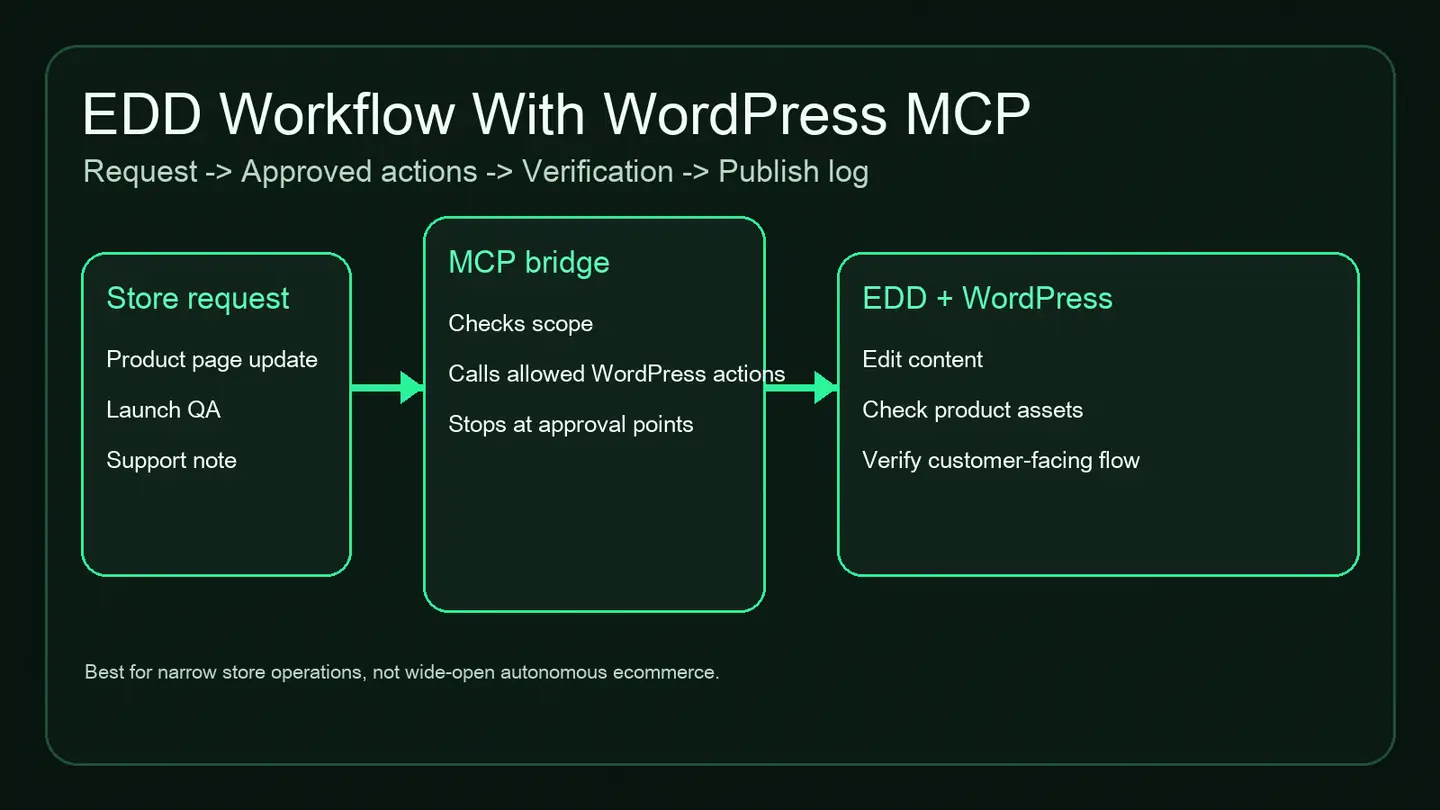
A useful review request is: “Read this product’s public description and available settings. Compare them with this expected file list. Report mismatches and missing evidence. Do not change prices, files, gateway settings, or orders.” Supply only the non-sensitive evidence the reviewer needs.
Assign a person to any browser, inbox, or file check the connection cannot perform. For changes that affect customer access or payment configuration, use a defined review point such as the human-in-the-loop approval workflow. Mark untested checks as untested.
6. Close the Easy Digital Downloads test purchase checklist
For launch, disable Test Mode, save, and verify the live gateway connection. If testing took place on staging, confirm production settings separately. A staging pass does not prove that production has the same files, email configuration, or payment connection.
Save a concise handoff: product and order IDs, tested option, file version, browser/device, receipt result, unresolved issues, and final environment state. Make “ready” mean that every required check has evidence. A failed receipt or wrong package should remain an open issue even when checkout itself works.
Make the checklist part of product updates
Repeat this review after changes to purchase buttons, product files, pricing options, checkout, or email delivery. Start with one representative product and expand to the store’s distinct buying paths. This gives your team a reusable way to approve changes without relying on memory.
To plan the assisted parts of that process, review the WEBOMCP addon options and confirm which EDD tools your site exposes. Then run one documented test purchase and use the evidence to decide whether the product is ready for customers.