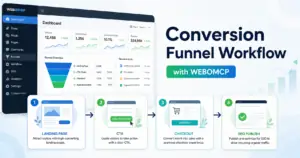
If your landing page updates keep bouncing between copy notes, Elementor edits, and manual QA, the workflow is the problem. WordPress MCP gives your team a structured way to request, review, and publish page changes without turning every edit into a messy handoff.
This tutorial shows how to use WordPress MCP with Elementor for faster landing page updates. It focuses on practical page-edit workflows, where the WEBO MCP Elementor Addon fits, and what to check before you publish.
What this workflow does
A WordPress MCP and Elementor workflow helps you describe the change clearly, apply it to the right page section, and review the result before it goes live. That matters when you are updating hero copy, CTA blocks, testimonials, pricing sections, or mobile spacing on pages that directly affect conversion.
It does not remove the need for review. It makes the review easier because each request is tied to a specific page, section, and intended outcome.

Before you start
Before you run the workflow, make sure the basics are in place:
- WordPress access with permission to edit the target page.
- The Elementor page already exists and has a stable layout structure.
- WEBOMCP is connected to the site, with the Elementor addon available in your stack of WordPress MCP addons.
- A clear change request, such as updating hero copy, swapping a CTA, revising a feature list, or adjusting mobile spacing.
- A review path for final approval, especially on sales or campaign pages.
If the page drives paid traffic or active campaigns, make the change on staging first or use a lightweight approval gate before publishing.
Step 1: Define the landing page change in plain language
Start with the exact business goal, not with a vague instruction like “improve the page.” A better request looks like this: update the hero headline for a webinar signup page, shorten the subheadline, and make the primary CTA more specific.
This matters because Elementor pages often contain many widgets, sections, and responsive overrides. Clear instructions reduce the chance of editing the wrong block or changing copy that still works elsewhere on the page.
- Name the page or URL.
- Identify the section to change.
- State what should stay untouched.
- Define the conversion goal behind the edit.
Step 2: Connect the request to the right Elementor section
Once the task is defined, map it to the exact part of the page. In practice, that usually means the hero, benefits row, FAQ accordion, testimonial section, or final CTA panel. Section-level clarity is what makes WordPress MCP useful for Elementor work instead of risky.
If your team updates both content and SEO elements in the same release, keep those tasks explicit. For example, a landing page copy edit may also need a title and description review through your Rank Math SEO workflow.
Step 3: Apply the Elementor update and review the layout
After the change is applied, review the page in the editor and on the front end. Do not stop at “the text changed.” Elementor landing pages can break in small ways that hurt conversions, especially after copy becomes longer or CTA labels change.
- Check desktop spacing after the updated copy is inserted.
- Preview tablet and mobile layouts for wrapping, overlap, or hidden elements.
- Confirm buttons still point to the correct destination.
- Review nearby sections so the new message still fits the rest of the page.
This is also the point where teams benefit from human-in-the-loop approvals. A structured review step catches messaging mistakes and layout regressions before they reach paid traffic.
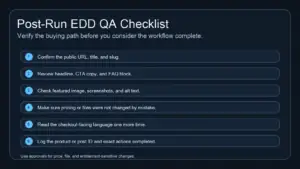
Step 4: Run a practical publish checklist
Before publishing, run a short checklist that covers both page quality and launch risk. This is where faster workflows usually fail: the edit is technically done, but no one checks how it affects the full landing page experience.
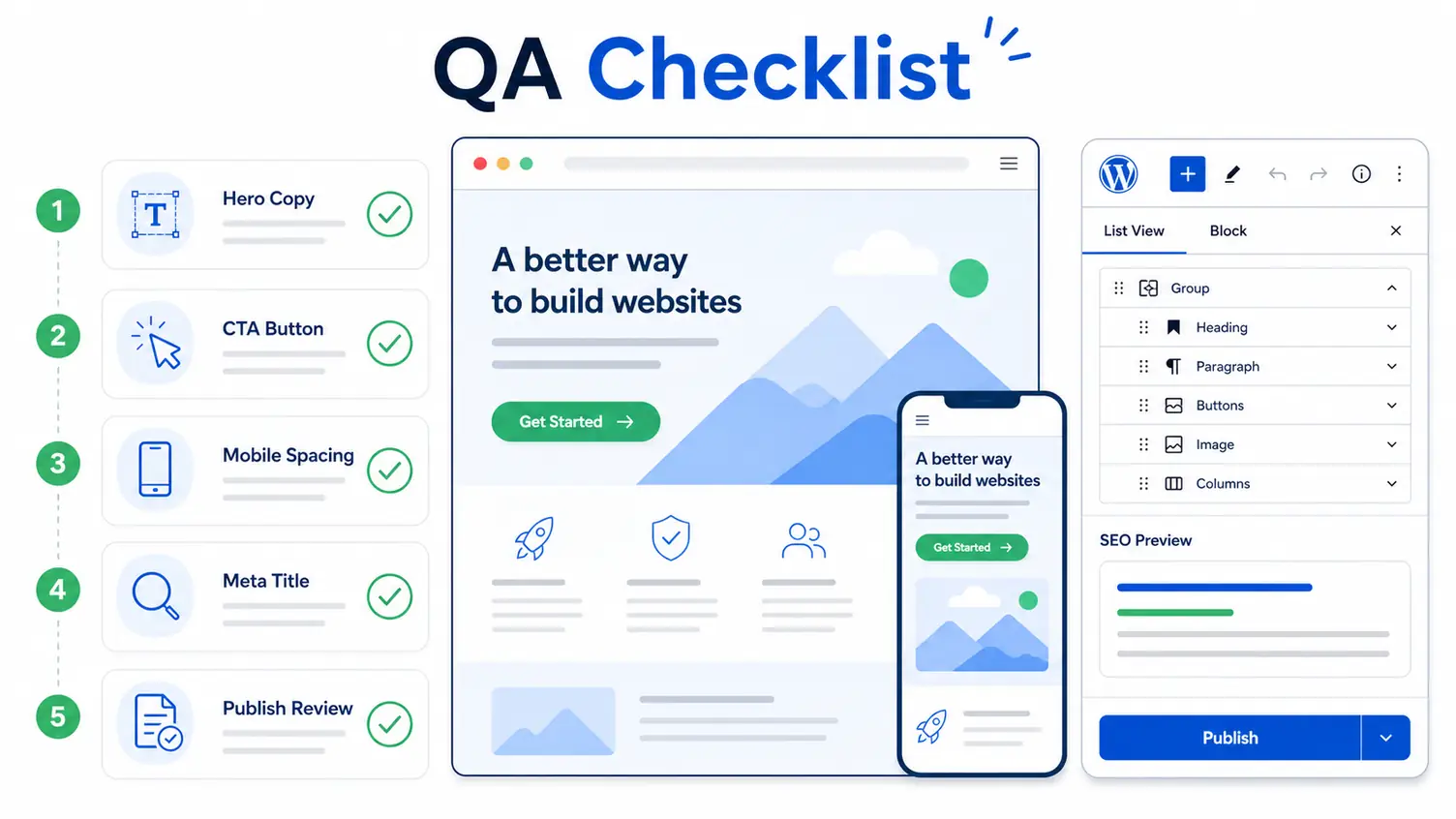
- Read the revised copy in context, not as isolated blocks.
- Test the primary CTA and any secondary buttons.
- Verify mobile spacing for hero, columns, and stacked widgets.
- Confirm form embeds, popups, or tracking scripts still behave normally.
- Check the page title and search snippet if the landing page should rank organically.
If the update affects search-facing content, review metadata and page intent before going live. That keeps the page aligned with both conversions and discoverability.
Common mistakes with WordPress MCP and Elementor
The most common failures are operational, not technical. Teams usually move too fast at the wrong point in the workflow.
- Editing copy without naming the exact section first.
- Reviewing only the editor view and skipping the front-end preview.
- Changing CTA text without checking the destination or tracking.
- Updating a layout-heavy page without checking mobile breakpoints.
- Mixing SEO, design, and messaging changes into one unclear request.
Best practices for faster and safer landing page updates
The best Elementor workflows are not just fast. They are predictable. A small amount of structure prevents rework and keeps urgent page updates from creating new problems.
- Use one request per landing page objective.
- Separate content edits from broader redesign work.
- Keep approval checkpoints for revenue-driving pages.
- Document reusable page-update patterns for launch, promo, and evergreen pages.
- Use WEBOMCP when you want WordPress actions to stay explicit, reviewable, and easier to repeat across sites.
If your team manages several builder-driven sites, this kind of repeatable workflow becomes more valuable over time than ad hoc page edits.
Conclusion
Using WordPress MCP with Elementor works best when the goal is simple: make landing page updates faster without losing control over quality. Define the change clearly, map it to the right section, review the layout on real devices, and keep a short publish checklist.
If you want a cleaner way to handle Elementor page changes inside a broader WordPress automation stack, review the WEBO MCP Elementor Addon and explore the rest of the WEBOMCP addon workflow stack.